How to configure model providers, when the bridge is needed, and what ChatPanel can and can't see.
No. The moment you install the extension you can chat — ChatPanel ships with a small private AI model that runs right in your browser on WebGPU. There's no API key, no account, and nothing to run.
Your first message downloads the model once (about 700 MB, cached in your browser), then it works offline and everything you type stays on your machine. It's a small model, so it's meant for quick help and trying things out — when you want stronger answers, add your own API key (many providers have free tiers), connect a local runner like Ollama or LM Studio, or install the Gateway/Bridge for more. Runs on any OS with a modern Chromium browser (Chrome/Edge 113+); if your browser has no WebGPU, ChatPanel points you to add a key instead.
Yes. Turn on Privacy → Redaction (the 🛡 button in the composer, or
Settings → Privacy) and ChatPanel replaces sensitive values with opaque placeholders
before anything is sent to the model, then restores them in the reply you read.
The AI model only ever sees placeholders like [[EMAIL_1]] or
[[PERSON_1]]; your real values are restored in the reply, and the mapping
stays in your browser. (Tools you've configured — local history search and any MCP
integrations — do receive the real values, so they can actually search and act.)
Two ways to replace a value, both set in the custom dictionary:
[[PERSON_1]] (and
can still reason about it); you see the real name back. Syntax: John => PERSON.John -> Alex.It applies to every model-bound call — your chat, plus background ones like title and topic generation, autocomplete, and the meeting scribe.
Patterns (emails, phones, cards, keys) are caught automatically. Detecting names, organizations and locations needs a model — ChatPanel runs it locally, so raw text never leaves your machine. You pick the detector under Settings → Privacy → Detector. Easiest first:
~/.chatpanel/models) — name/org/location detection works out of the box, with no Python
and no separate service to run. CLI agents pointed at the gateway get it automatically. To power the
extension's own redaction with it, set Detector = Custom PII service, URL
http://127.0.0.1:4320/ner. You can switch to a larger or multilingual model right from
the Gateway tab. (Install steps are in “Bridge vs Gateway” below.)
http://127.0.0.1:11434/v1, model
llama3.2). Often the best recall — raise the Timeout if the model is slow.
{text}
and returns {entities} (spaCy, Presidio, …). A minimal spaCy version:
python3 -m venv .venv && source .venv/bin/activate   # Windows: .venv\Scripts\activate
pip install fastapi "uvicorn[standard]" spacy
python -m spacy download en_core_web_sm
# server.py → run: uvicorn server:app --port 9009
from fastapi import FastAPI
import spacy
nlp = spacy.load("en_core_web_sm")
app = FastAPI()
@app.post("/ner")
def ner(p: dict):
doc = nlp(p.get("text", ""))
return {"entities": [{"value": e.text, "type": e.label_} for e in doc.ents]}http://127.0.0.1:9009/ner.
Pick which categories to redact — e.g. turn Locations off to keep city names readable for “how far is X from Y” questions.
Detection is cached, time-limited, and fail-open — if it's slow or down, ChatPanel falls back to pattern redaction so chat never blocks. The detector sees the raw text, so keep it local (the bundled NER and a local LLM both stay on your machine).
Free redacts structured secrets — emails, phones, cards, API keys, IPs — on your chat, plus a small custom dictionary, fully reversible. Pro adds AI auto-detection of names / orgs / locations, redaction across page, meeting, history and tool context (not just the chat line), an unlimited dictionary, and per-category control.
Browser extensions run in a sandbox — for your safety, Chrome won't let a web extension launch programs, read your filesystem, or run a terminal. That's a problem for ChatPanel, because the whole point is to talk to the AI agents already installed on your machine — Claude Code, Codex, Antigravity CLI (Google's successor to Gemini CLI; Gemini CLI remains available for business/enterprise).
The bridge is a tiny source-available helper that runs locally and closes that gap.
The extension talks to it over localhost (a loopback connection that never leaves your
computer), and the bridge does the things a sandbox can't: it starts your local CLI
agents, spawns local MCP servers (a uvx/npx
command), and proxies remote MCP servers that refuse browser connections — streaming
everything back to the panel.
One tiny helper, three jobs: run your CLI agents, spawn local MCP servers, and reach remote MCP servers that block browsers. No ChatPanel cloud in the path
Do you always need it? No — only when something must run outside the browser sandbox: a local CLI agent, a local (command) MCP server, or a remote MCP server that blocks browser origins. If you just point ChatPanel at a cloud API or a local model server (your own OpenAI/Anthropic/Ollama endpoint), and use only remote MCP servers that accept browser connections, the extension talks to them directly and no bridge is required.
The ChatPanel Gateway is a local redacting proxy / model router. Point
any OpenAI- or Anthropic-compatible client at it on localhost — a coding agent
(OpenCode, aider, Pi), your own scripts, or the
ChatPanel extension itself — and it redacts every request, then forwards the cleaned traffic to
either a model API you bring (your own key — no bridge needed)
or your subscription CLI agents (Codex / Claude Code, via the bridge).
Whatever runs behind it only ever sees placeholders like [[PERSON_1]] — the real values
never leave your machine.
Point any OpenAI/Anthropic client at the gateway; it redacts, then routes to a model API you bring (no bridge) or your subscription agents via the bridge — chosen by the request's model name. No ChatPanel cloud in the path
It's not name-detection only — the gateway runs the same redaction engine as the extension: deterministic patterns (emails, phones, cards, SSNs, API keys, IPs), a custom dictionary with optional permanent aliases, and name/org/location detection via a bundled NER (an in-process NER model — no Python, no extra service) or a local LLM. It also speaks the OpenAI and Anthropic protocols, supports streaming, and — as a model router — can either drive your subscription agents (via the bridge) or forward to a model API endpoint you bring.
You'll configure it right here in the extension — enter the gateway URL and set up the privacy rules, registered clients, and logging, the same way you configure the bridge and your agents today.
npm — which gateway should I install? (speed & local AI)The gateway ships two ways, and they behave identically for redaction and routing — the difference is how fast the local AI models run (speech-to-text, speaker diarization, and the bundled NER). Pick based on whether you have Node.js:
curl … install.sh) — one self-contained file, no
Node.js required. The catch: a single-file executable can't embed a native library, so it runs the
AI models on the WebAssembly (WASM) runtime — which is limited to full-precision
(fp32) models, single-threaded. Great for zero-setup redaction/routing; slower for
speech-to-text.
npm install -g @chatpanel/gateway (needs Node.js) — runs the AI models on the
native runtime, which loads quantized (smaller, ~4× lighter) models and
uses your CPU fully. In our tests this makes local speech-to-text roughly 10× faster — the
difference between “can’t keep up with live speech” and comfortably real-time, even on the larger,
more-accurate models. It also gives you the flexibility to run bigger models (e.g. multilingual
large-v3-turbo for non-English dictation) at usable speed.
Recommendation: if you'll use voice dictation, meeting transcription, or larger local models,
install via npm for the speed and model flexibility. If you just want private model routing with
zero setup, the binary is fine. You can check which runtime you're on in the extension's Gateway
settings (it shows an advisory if you're on the slower WASM build), or via
GET /health → stt.runtime (native or wasm).
Don't install both. If you run install.sh and npm, one can
shadow the other on your PATH and the background service may keep launching the old one — so an
update looks like it “didn't take.” Pick one method; if you switch to npm, remove the binary
(default ~/.local/bin/chatpanel-gateway) and re-run chatpanel-gateway --install.
The model only ever sees placeholders like [[PERSON_1]] — but a tool that searches
or acts needs the real value to work. The gateway squares this with a per-request
vault (a private map of [[PERSON_1]] → "Alex Rivera"): it
restores the real value just-in-time so the tool runs on it, then
re-redacts the tool's result before the model sees it. The agent never sees the real
value; the tool does.
Read 1 → 6. The real name (amber) becomes a code (green) the moment it could reach the AI, and is revealed only between ChatPanel and your own tool. The AI never sees the real name — you always do
Step by step, for “search for Alex Rivera’s open tickets”:
search [[PERSON_1]]'s tickets.search({ query: "[[PERSON_1]]" }).search({ query: "Alex Rivera" }).[[PERSON_1]] again.Who actually runs the tool? Not the model, and not ChatPanel. With function/tool calling the model only asks for a tool by name (it returns the request and pauses) — your client runs it, the same as it would without ChatPanel. The gateway just translates the values (codes ⇄ real) on the arguments and results as they pass through. Model requests → client executes → gateway translates.
One control governs the trust boundary — Gateway → Tools receive:
[[PERSON_1]] token, so PII never leaves to that server; local tools still get the
real value. (Trade-off: a remote tool then operates on the placeholder.)
The gateway is the harness — ChatPanel implements it (the shared
@chatpanel/pii engine); you don't write any glue. It owns a per-request
vault, redacts on the way out, restores on the way back, and brokers tool arguments.
Components and the flow (method names omitted):
green = the code the model sees · amber = the real value (only the client, its tool, and you). The Vault is the one shared map both the Redaction engine and the Tool broker use.
The harness can only swap values on traffic that crosses the gateway — the prompt, the reply, and tool calls relayed through it. So:
What about Codex / Claude Code (subscription agents via the Bridge)?
Here the gateway redacts the prompt the agent receives, so the agent reasons on placeholders. But a CLI agent runs its own tools — reading files, running shell, its own MCP servers — as local side effects the gateway never sees, and it calls its own model under your subscription. So the gateway does not mediate those: the agent's tools can read your real local files directly (the gateway redacted the conversation, not your disk), and what the agent gathers goes to its model outside the gateway.
They're separate, optional pieces — install only what you use:
Install the Gateway (standalone binary, no Node.js needed):
# macOS / Linux
curl -fsSL https://dl.chatpanel.net/gateway/install.sh | bash

# Windows (PowerShell)
irm https://dl.chatpanel.net/gateway/install.ps1 | iex

# or via npm (any OS, needs Node)
npm i -g @chatpanel/gateway && chatpanel-gateway --install   # redaction proxy on http://127.0.0.1:4320
Then point any OpenAI-compatible client at http://127.0.0.1:4320/v1. The request's
model name (codex, claude, …) selects which agent the Bridge drives behind
it — or switch the gateway to its api backend to forward to a provider endpoint instead.
Use it as a model in the ChatPanel extension — Settings → API tab → add a custom OpenAI-compatible endpoint:
http://127.0.0.1:4320/v1local) — the gateway forwards your real key
or subscription logincodex, claude, or one of your
own API modelsPick that model from the side-panel dropdown and chat as usual; every request is redacted on the way out and restored in the reply. You can also configure the gateway directly from the extension's Gateway tab. The three pieces — extension, bridge, gateway — are versioned and released independently.
Those are macOS privacy prompts (Apple's TCC system), not something the bridge wants for itself. The bridge launches your local agents, and when one of them reads or writes a file in a protected folder, macOS asks your permission and attributes the prompt to the parent app — the bridge.
You can grant or deny per folder; denying simply limits the agents to non‑protected directories. They only touch files when you ask a question that needs them (or when you point an agent at a working directory).
If the prompts reappear after a bridge update, that's expected: macOS ties approvals to an app's exact code signature, so a new build re-asks. A fully signed & notarized release keeps the approvals stable across updates.
No. ChatPanel is local-first. Your prompts, keys, and history live in your browser; the bridge runs entirely on your machine. Content goes only to the model or agent endpoint you choose — we have no cloud in the data path and never see your conversations.
Yes — the extension and the bridge are source-available on
GitHub (under the
PolyForm Shield
license), so you can read and audit exactly what the bridge does. It listens only on
localhost (not the network), uses your existing agent logins, and ships no telemetry.
You're free to inspect, fork, and modify it for your own use — you just can't use it to ship a
competing product. (It's published for transparency, not as OSI “open source.”)
The bridge runs a tiny server on your own computer, so it's built to ignore anything that isn't really you:
127.0.0.1 — your machine alone.
Nothing on your network or the internet can reach it directly.
localhost and from an allowed source, which blocks two classic browser attacks
(“DNS rebinding” and cross‑site request forgery) that try to sneak commands into local apps.
CHATPANEL_BRIDGE_ALLOW_PRIVATE_HOSTS=1 setting.)
And remember: your chats never go through us. The bridge only talks to the agents and model endpoints you choose.
Install it once from the ChatPanel Install section; it runs quietly in the background and the extension detects it automatically. To use only cloud/API models, you can skip the bridge entirely.
Open Settings → API, then configure an endpoint. You can use a provider preset for common services, or choose Custom / self-hosted for a private gateway, local server, or any OpenAI- or Anthropic-compatible endpoint.
Supported presets include OpenAI, Anthropic, OpenRouter, Hugging Face Router, Google AI Studio / Gemini, NVIDIA NIM, Groq, Mistral, Cohere, Cerebras, DeepInfra, Fireworks, Together AI, xAI, Vercel AI Gateway, GitHub Models, Cloudflare Workers AI, Ollama, LM Studio, llama.cpp, and vLLM.
Custom configuration is supported. You can set the base URL, OpenAI vs Anthropic API style, extra headers, extra request JSON, temperature, max tokens, model ID, and a separate fast autocomplete model. Use this for local servers, internal gateways, proxy services, or any provider that exposes a compatible chat-completions API.
A model-list request is not always the same as a chat request. Some providers expose a public or
less-restricted model catalog, then require stricter auth, billing, quota, or parameter limits for
/chat/completions. In ChatPanel, Load models only proves the catalog
endpoint responded; Test proves the selected model can actually answer.
Hugging Face OAuth needs an exact redirect URI. The official Chrome Web Store and Microsoft Edge Add-ons versions of ChatPanel each have a stable extension ID, so their redirect URIs are registered and the built-in Sign in with Hugging Face button works without extra setup.
If you download the zip and load it manually with Developer mode, Chrome may give that unpacked copy a different extension ID. That also changes the OAuth redirect URI, so Hugging Face can reject the login page with an authorization/403 error.
For a downloaded or unpacked build, either use the official store version or create your own
Hugging Face OAuth app as a public client with no client secret. In ChatPanel,
open Settings → Endpoints, choose Sign in with Hugging Face,
copy the displayed redirect URI into the Hugging Face app, enable the inference-api
scope, then paste that app's client ID into ChatPanel's optional Hugging Face client ID field.
The token stays in your browser storage; it is not sent to ChatPanel's servers.
Yes — and because ChatPanel is two pieces (the extension and the local bridge), together they cover every role in the Model Context Protocol:
uvx mcp-server-…, which the bridge spawns for you since the extension can't run
processes itself). You can also search the official MCP registry and add a
server in one click. Some remote servers reject browser extensions (an Invalid origin /
DNS-rebinding 403); for those, set Connect via → Bridge and the bridge
fetches the server from your machine instead. Their tools then become callable by your agents, right
in the chat.opencode mcp add chatpanel --url http://127.0.0.1:4319/mcp — and it can read and act
on your real, logged-in browser tabs. No headless browser; calls are routed to
your active ChatPanel chat, which owns the tab and executes them.
Every MCP connection runs on your machine — the bridge listens only on
127.0.0.1, and nothing is brokered through ChatPanel's cloud.
Free includes one MCP tool server; Pro is unlimited.
This is the part people find surprising. A command-line agent like
Claude Code or Codex has no idea what a browser is — it runs in a
terminal. ChatPanel bridges that gap by making your real, logged-in browser tab look like
an MCP server the agent can call tools on. Ask the agent to "read this page and click the
top result," and under the hood it's just calling inspect_page and
click_element — MCP tools that happen to run on your actual Chrome tab.
Three pieces play three roles, and none of them does the others' job:
127.0.0.1:4319/mcp, but it has no browser and never touches a page itself. It's a
relay.Your browser becomes a tool the agent can call — but only for the moment it's working. Ephemeral by design
Yes, deliberately. Unlike a normal MCP server that stays on as long as it's connected, ChatPanel's browser tools only exist during an active chat turn. The instant the agent finishes replying, the session is torn down and the endpoint advertises zero tools again. There's no always-on, remotely controllable surface sitting on your machine waiting to drive your browser.
Combined with the fact that the bridge listens on 127.0.0.1 only (never the network),
this shrinks the attack surface to a sliver: the tools are reachable only in the brief window when
you started a chat with Act on page on. Outside that window, even a program
already running on your computer finds nothing to call. It's defense-in-depth, not a login — but it
means your real, logged-in tabs aren't permanently exposed just because the helper app is running.
OpenCode and Pi now ship as built-in presets — just pick them in
Settings → Agents and connect a model. No commands or flags to figure out;
ChatPanel already knows how to talk to each one (including the small details that used to
trip people up, like OpenCode needing its non-interactive run mode).
Want to use a different tool? With Pro you can point ChatPanel at any command-line agent — Ollama, a script of your own, anything that runs in a terminal. Add an agent, choose “custom — bring your own Agent”, and fill in three fields:
pi) or its full path.
Check confirms the helper app can find it.{prompt} to drop your message in,
or leave it and ChatPanel passes the message the usual way.Everything stays on your machine — the command runs locally and your chats never route through our cloud.
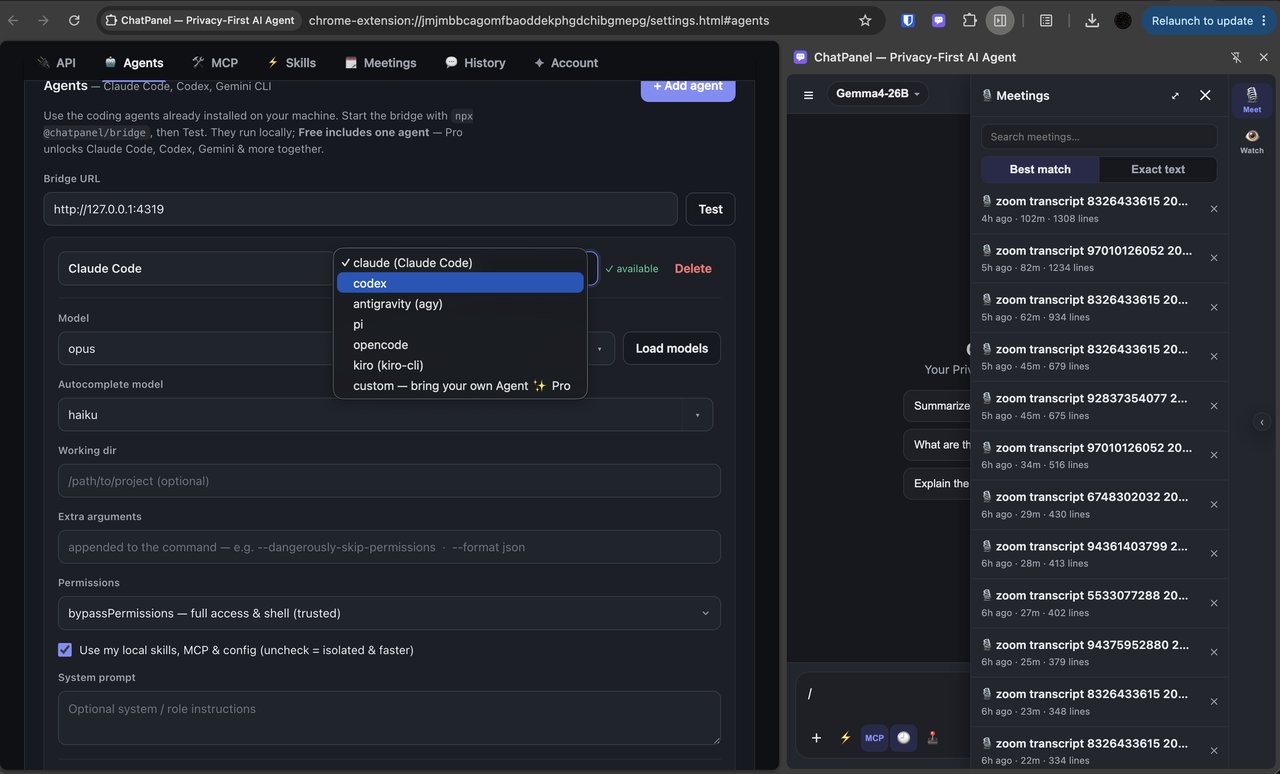
On Zoom, Google Meet, Microsoft Teams, and Webex, ChatPanel reads the meeting's live captions and turns them into running notes — key points, decisions, and action items that refresh as the conversation goes. Afterward you get a full transcript you can search, or ask questions about (“what did we decide on pricing?”).
It all happens inside your browser — no bot joins the call and nothing is uploaded. It only ever reads the captions the meeting platform already shows — never your microphone, camera, or screen. Turn on captions in your meeting app and ChatPanel does the rest. You can save the notes or transcript to a file when you're done.
Free captures your first 10 meetings; Pro is unlimited.
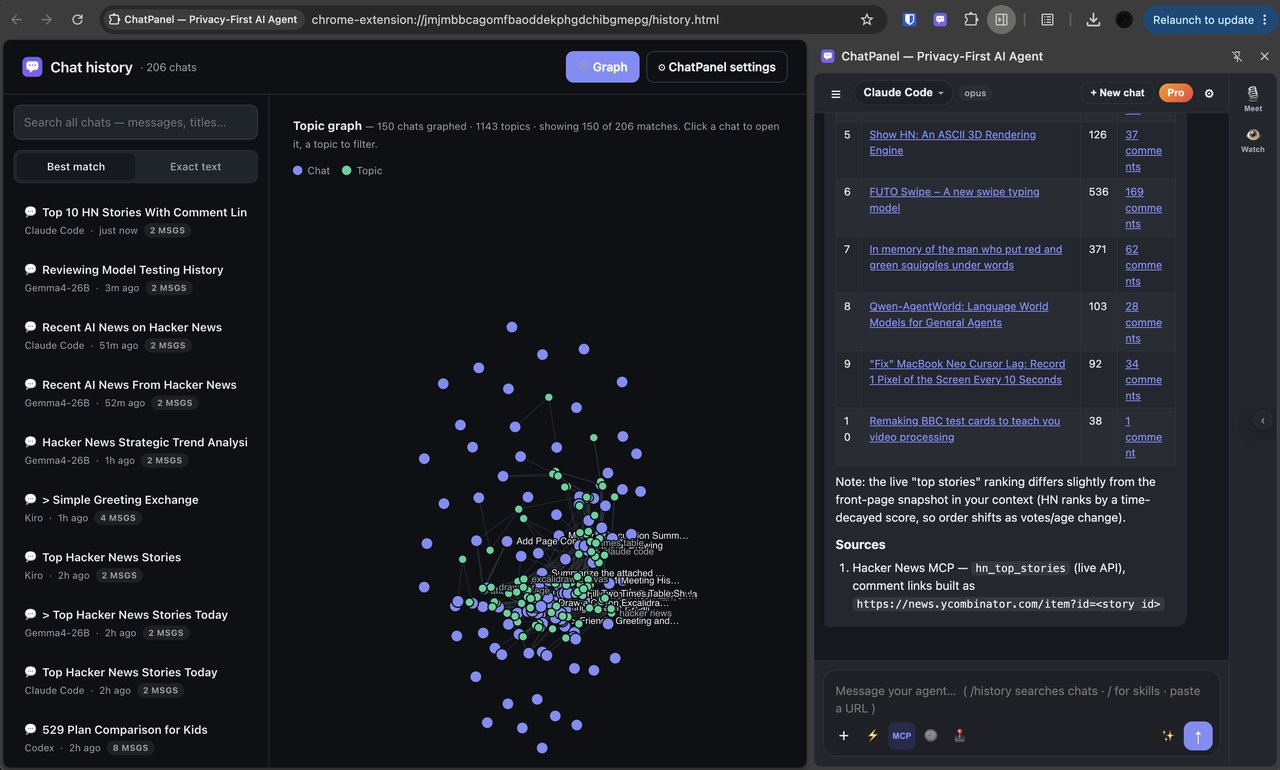
Yes. Every conversation is saved on your computer and is instantly searchable — search by what you said, by title, or by topic. Nothing is uploaded; your history lives in your browser.
There's also a topic map: a visual layout of everything you've discussed, grouped into clusters by subject. Click a point to jump back into that chat, or to filter down to one topic. It's an easy way to rediscover something you talked about weeks ago.
Yes — turn on Act on Page and ask in plain words. ChatPanel can read a form on the current tab and fill in fields, choose options, and click buttons on your behalf, so you can hand off repetitive web tasks.
It only acts when you switch the feature on, and only on the tab you're working in. Everything runs locally in your browser. This works with any chat model you've connected.
Yes — web search is built in. Type /search <query> anywhere in a message, or just
ask a question that needs current information, and ChatPanel fetches live results, reads the most
relevant pages, ranks them against your question, and feeds them in as context — with
clickable source links right in the answer. It works with
every model and agent you've connected, even ones that don't support tools, because
the results ride along as context.
Searches run quietly in the background — no browser tabs pop open — and your query goes only to the search engines you pick. Capable models can also decide to search on their own mid-conversation, so a follow-up like “how about the other one?” triggers a fresh lookup automatically. Choose your engines, result counts, and an optional clean reader under Settings → Tools → Web search.
Yes. Set Settings → Preferences → Response language and ChatPanel enforces it across every model — replies come back in your chosen language no matter what language you type in, unless you explicitly ask for another. Leave it on Auto to match each message. ChatPanel also quietly tells every model today's date, so answers about “now” and recent events aren't stuck behind an old training cutoff.
Yes. On Excalidraw, draw.io, and tldraw, ChatPanel recognizes the canvas and lets your agent build the drawing as structured data — every shape placed at exact coordinates in a single pass, using each app's own scene format — instead of dragging the mouse pixel by pixel. Flowcharts, architecture diagrams, and wireframes come out clean and aligned, and the agent can read what's already on the canvas to add to it without overlapping.
This structured-insert path is a Pro feature. On Free, ChatPanel falls back to the universal pixel-drawing tools, which are far slower and less precise on these apps.
Yes. From Settings → Account you can export a complete snapshot of everything to a single file — your settings, connected models, agents, tools, skills, web-search and privacy/redaction preferences, all chat history, and all captured meetings (transcripts, summaries, and topics) — plus your endpoint sign-ins so you don't have to re-connect. Restore it on another computer to move your whole setup across, or just keep it as a backup.
Optional password protection. Type a password in the export box and the file is
encrypted (AES-256) on your device — useless to anyone without it. You'll need the
same password to restore. There's no recovery, so if you forget it the data is gone — that's
the trade-off for a zero-knowledge file only you can open. Leave the box blank to export a plain,
browsable .zip instead.
The file contains your API keys and sign-ins, so keep it somewhere safe (or use a password). Your Pro license isn't part of the export — it re-activates from your purchase email.
Yes — turn on daily automatic backup to disk in Settings → Account. Once a day, whenever something has changed, ChatPanel writes the full backup into your Downloads → ChatPanel Backups folder, rotating by weekday so the last seven days are always kept. It runs in the background — no prompts, no clicking.
This is your safety net for reinstalls. Your data normally lives inside the extension, which the browser ties to the extension's identity — so a manual reinstall can sometimes leave the old data stranded. Because the daily backup sits on your disk, outside the extension, it survives that: after reinstalling, just Restore from file with the newest backup. You can also give the daily files a password so they're encrypted at rest, which is worth doing if your Downloads folder syncs to the cloud or you share the machine.
Everything stays on your device — automatic backups are written to your local disk and are never uploaded to ChatPanel.
Your skills are saved in your browser the first time ChatPanel runs. After that, ChatPanel keeps your copy — so if a new version ships improved built-in prompts (Summarize, Explain, Extract, Code review…), simply refreshing won't overwrite the ones you already have. That's deliberate: it protects any edits you've made. To pull in the newest defaults, clear the saved skills once and they'll re-seed from the current version.
const k = 'chatpanel:settings';
const s = (await chrome.storage.local.get(k))[k] || {};
delete s.skills;                 // drop saved skills → re-seed defaults
await chrome.storage.local.set({ [k]: s });
location.reload();
That resets only your skills — endpoints, agents, history, and your license are left untouched. (Custom skills you created will be removed too, since they live in the same list, so copy any prompts you want to keep first.)
Notes is a local notebook your AI writes with you. Capture anything — a chat reply, a page,
a meeting takeaway — into notes that link to each other with [[wiki-links]], so your
workspace becomes a connected graph you can browse and search.
Inside a note you can: co-write with your model (it edits alongside you, with authorship tracked so you can see who wrote what); research across your own notes, chats and meetings and the web; and turn a selection into a plan — ChatPanel spins up a linked plan note and drops a link back in place. Everything is stored on your machine and encrypted at rest.
Free keeps your first 10 notes (the count in the header shows
current(deleted)/10 — deleting doesn't free a slot, since the cap is on notes ever
created). Pro is unlimited notes, plus the co-writer model router and
automatic backups.
Yes. With the Gateway installed, ChatPanel transcribes your voice with a speech-to-text model that runs entirely on your own machine — dictate a chat, a note, or a question, and it's turned into text locally. Your audio never leaves your computer, and no cloud speech API or key is involved.
The Gateway runs the model in-process (no Python, no second app to babysit) and downloads a small Whisper model on first use, then works offline. It auto-detects your language, and — because it's the same local pipeline as redaction — recognized text can be PII-scrubbed before it ever reaches a cloud model. This is separate from meeting transcripts, which read a call's live captions (never its audio) and don't need the Gateway.
 ChatPanel